
On the WordPress web site
I got fed up the other day, I was wanting to find a graphic to answer a particular prompt. I’d have first loaded the graphic a year ago, so it went way, way back in the library.
As I scrolled through the weeks and months, I thought, there must be a better way, and I saw the 🔎 symbol above my library..

Search on what?, I wondered. So, I contacted WordPress. It turns out that when you add in an image, there are a half-dozen text fields like title and description, over and above the image itself.
You get to see these additional fields by going into your Media Library, selecting an image, then choosing “Edit”
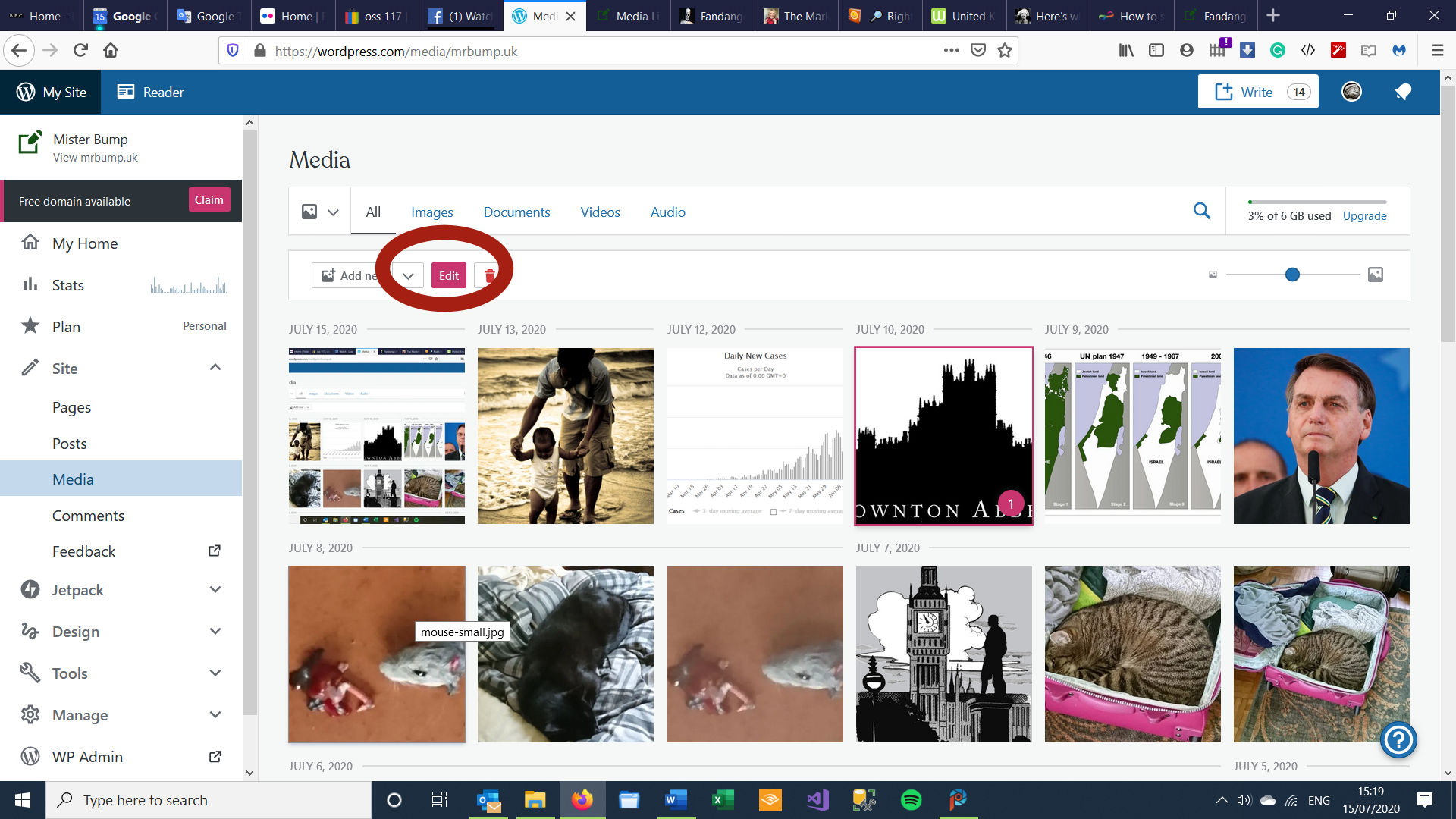
which leads you to the extra fields:

WordPress told me that if you try searching for an image, the site searches just the title field. You can type your own text into this field, type spaces, and it supports several tens of characters – I never got near the exact limit.
By now, there are hundreds of images in my library (about 700) so I spent four or five sessions going through each image, giving it a very basic name. Like above – “prompt fowc” – just keywords so WordPress will recognise the image next time. There is a button there. “Done”, which saved my new title. And I can then use that Search button to find the image again next time. For example, these ones are all called “prompt”. The result was that I could now type in a word, and see this:

In other words, you just get a subset of your images back. So, searching for that old image is far quicker.
wp-admin
Incidentally, if you prefer the Classic interface, this process is pretty much the same. Look at your media library, and you’ll see a search box to allow you to filter your images:

and you can see/change these exact same fields for each image, just by clicking on your desired image:

(in fact, if you want to set the titles of several images, this way is quicker.) Your new title gets saved automatically when you go to the next image, or close this window.
What about you?
This applies to the WordPress web site, but do you use a WordPress App instead? Have a play! See what you can do. I bet you this will be in there somewhere.
 Mister Bump
Wow, this is great information. Thanks.
LikeLiked by 1 person
🙏
LikeLiked by 1 person
Good to know. But I probably have more than 1,000 images in my library and it will take a LONG time to title every one. Now my question for you, Mr. Bump, is what is the “Alternative Text” field used for?
LikeLiked by 1 person
I do actually know this! You have some browsers that do not display text. Possibly because the “reader” is blind. So instead of displaying the image, it displays this text as an alternative. I never looked but I guess that is how WordPress uses it too.
That’s the only field of them all that I recognised. Things like “description” seem a bit meaningless because whatever you write there, you can’t search on it. So you could fill out a blinding description, but you’d never be able to find the image again.
Yeah it’s a pita with so many images in your library. Maybe if there are one or two images you keep going back for? You could just tag them? Your FPQ one I stored probably a year ago, so this’ll just save me scrolling through everything.
LikeLiked by 1 person
Oooh that is is helpful…I should try that.
LikeLiked by 1 person
I’ll find it useful just not to have to scroll through hundreds of images
LikeLiked by 1 person
Very cool! I’ve seen that, but never have filled in anything for my photos. I just usually go to the last post I did for whatever, and copy the logo from that. Good to know this information, though. 🙂
LikeLiked by 1 person
Such a good tip, I’ve noticed it that you can search your images. I knew that you can add a title but it didn’t came to mind what to use that title for. Great info!
LikeLiked by 1 person
I found it useful. I started off with the prompts then, when I saw it worked, worked through everything. It took a while but it was probably worth it. When I write a post now I try to look for an existing image that might fit the bill.
LikeLiked by 1 person
I like your image for the quiz. It so straight to the point, that I immediately check the questions out.
LikeLiked by 1 person
It took 2 seconds to knock up in Paintshop Pro.
LikeLiked by 1 person
You’re just so great with computers!
LikeLiked by 1 person
Adding tags to the artwork, particularly the items you use all the time, is a good idea. Maybe one of these days when I have little or nothing to do I should work on that…
LikeLiked by 1 person
I’m hoping that the few hours I spent will save me time in the long run. Certainly frustration.
LikeLiked by 1 person